
Connect a HubSpot contact list with your own private app token. PPCmate reads only the e-mail addresses of the list you choose, hashes them on arrival and refreshes the list every day. You can then use it on Google, Microsoft and Meta like any other customer list.
1. Create a private app token in HubSpot
You must be a super admin in HubSpot.
- In HubSpot, go to Development → Legacy apps → Create legacy app → Private. (In older accounts: Settings → Integrations → Private Apps.)
- Under scopes, add crm.lists.read and crm.objects.contacts.read, then click Create app.
- Open the Auth tab, click Show token and copy it.
2. Connect it in PPCmate
- Go to Audiences → Connect Audience Data. Under CRM & B2B data, click Connect on HubSpot.
- Paste the token into Private app token and click Check key. You'll see your HubSpot account number and the last 4 characters of the token.
- Under List, choose a contact list or segment. Both static and active (dynamic) lists work. Dynamic lists change as contacts join or leave them, and Daily updates follow those changes.
- Check the Audience name, and the E-mail field if you have more than one.
- Under Updates, choose Daily (recommended) or Once.
- Tick "These are my company's own contacts and I may use them for advertising. Disconnecting deletes everything copied." and click Connect.
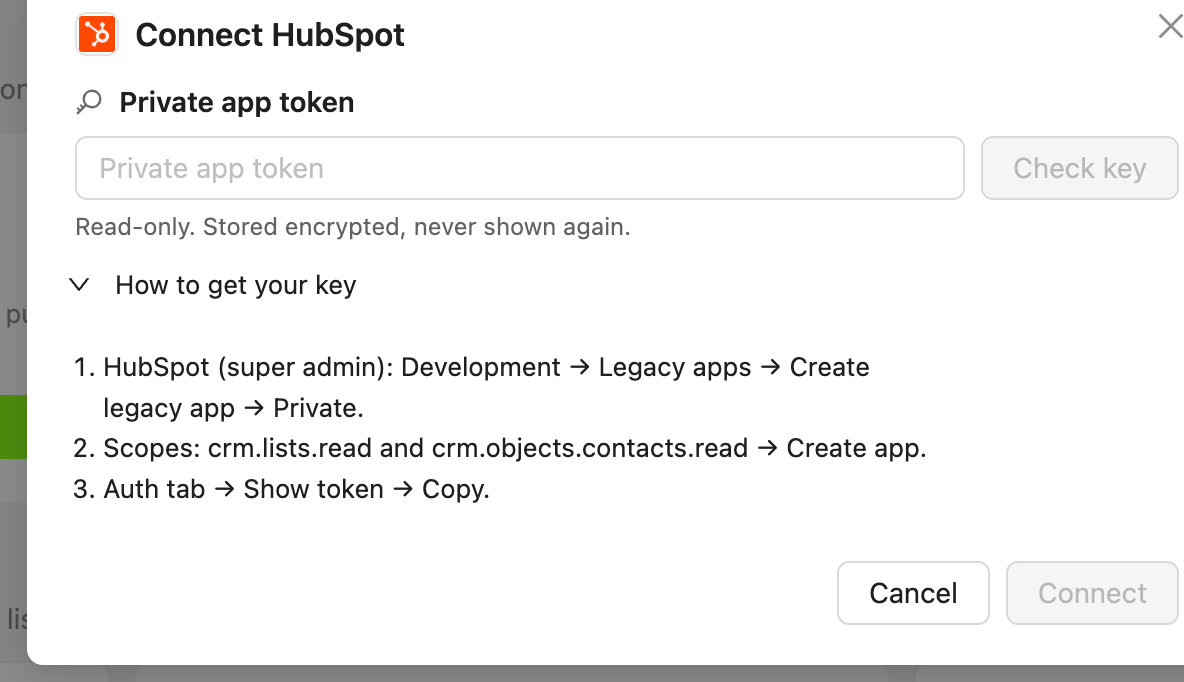
The token is stored encrypted and is never shown again. PPCmate only reads from HubSpot and never writes to it.
3. Use the list
The audience appears on the Audiences page. Pick it in a campaign's Customer Lists section, under Show ads to. See Customer lists: upload a list and use it on Google, Microsoft and Meta.
Troubleshooting
- "Preparing…": your contacts are saved and the audience is being set up. This takes a few minutes, and there's nothing to do.
- "Connected · too small": Google, Microsoft and Meta need at least 300 people in a list. Pick a bigger HubSpot list, or wait until this one grows (Daily updates pick up new contacts).
- "Reconnect": HubSpot refused the token, usually because it was rotated or the private app was deleted. Click Reconnect, paste a new token and click Save key. Your campaigns keep using the last good list in the meantime.
- "Needs you": the last update failed. Hover for the reason, then click Sync now to try again.
- The key was not accepted: check that the token has both scopes and that you copied the whole token.
- Low reach: "Expected reach: low" is normal for B2B lists. Work e-mails match ad accounts less often than personal ones.
To stop syncing, see Disconnecting a data source: what gets deleted.