
A customer list lets you show ads to people you already know, such as customers, leads or newsletter sign-ups. You can also show a list higher bids, or (on Meta) use it to find similar people. PPCmate sends only SHA-256 hashed e-mails to the networks, never readable addresses.
What's available
- Google (Customer Match): Google Search and Google Display campaigns. Live for all advertisers.
- Microsoft (Customer Match): Microsoft Search and Microsoft Audience campaigns. Live for all advertisers.
- Meta (Custom Audiences): Facebook and Instagram campaigns, plus lookalikes. Live for all advertisers.
1. Create the list and upload it
- Go to Audiences → Connect Audience Data and click Upload IDs on the Any file tile.
- Upload a CSV with one value per line: SHA-256 hashed e-mail addresses (lowercase and trimmed before hashing), or mobile device IDs (GAID / IDFA). There is a limit of 5,000 values per file.
- Tick "These are my own customers and they agreed to receive ads. We only send scrambled (hashed) data."
- Under Also use on, tick the networks you want. Google follows the permission line. Microsoft and Facebook & Instagram are ticked per list.
Have plain e-mails instead of hashes? Use a contact file, and we hash them for you: see Contact list file (CSV): format and upload. You can also pull a list from your CRM: see Connect HubSpot: sync a HubSpot contact list to your audiences, Connect Apollo.io: sync a saved Apollo contact list or Connect Dealfront: sync a Dealfront contact list.
2. Wait for the match
Each network matches your list against its own users:
- Google: 6 to 48 hours. Google needs about 1,000 matched people for Search and about 100 for Display.
- Microsoft: up to 48 hours. Microsoft uses a list from about 300 matched people. E-mails only, so device IDs aren't used.
- Meta: up to 24 hours. Meta shows only a size range, and doesn't show very small lists.
On the Audiences page, hover over the list to see its status on each network.
3. Use it in a campaign
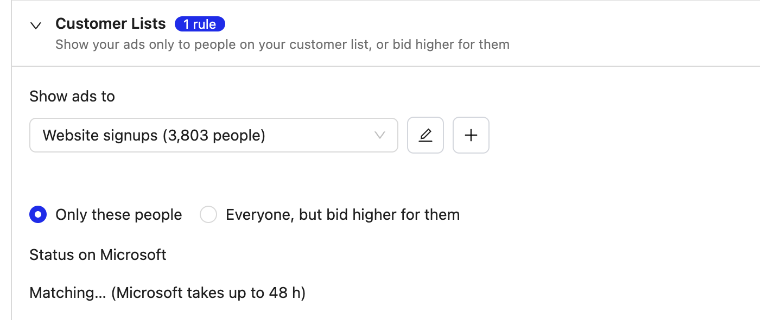
In the campaign form, open the Customer Lists section. Under Show ads to, pick your list, then choose:
- Only these people: the ad shows only to people on the list. The campaign waits until the network has matched the list, then starts by itself.
- Everyone, but bid higher for them (Google and Microsoft): everyone can see the ad, and people on your list get a higher bid.
- Find similar people (lookalike) (Facebook and Instagram): Meta finds new people who resemble your list in the campaign's countries. Choose Closest (1%) or Wider (5%).
Troubleshooting
- "Matching…": normal. Matching takes up to 48 hours.
- "Too small": add more people. A list under 300 people rarely works anywhere.
- Matched count much lower than the list: normal for B2B lists. Work e-mails match less often, see Customer lists explained: privacy, hashing, consent and match rates.
- List greyed out as "(empty - upload a list first)": nothing has been uploaded to that list yet. Upload a file, then pick it.
- Skipped values: lines that aren't a valid SHA-256 hash or device ID are skipped.
- Every status and what to do: Customer list statuses on Google, Microsoft and Meta and what to do. Choosing between the options: Only these people, bid higher, or lookalike: choosing how a campaign uses your list.
See also: Google Ads from PPCmate, Facebook and Instagram Ads from PPCmate and Microsoft Audience campaigns: B2B targeting by company, industry and job function.